
MyExeter Account Guide
Welcome to MyExeter
We've introduced MyExeter as part of improvements we are making to our online services. MyExeter is a new customer account where you can raise requests with us, track their progress, and access this information 24/7.
Creating an account is easy and only takes a few minutes. You will need to tell us:
- Your name and address
- Your telephone number and email address
We will use your email address to verify your contact details in order to set up your new account.
Once you’ve created your account, you will be able to raise new requests with us, and track the progress of those requests. You will also be able to make payments for services such as;
- Council Tax
- Housing Rents
- Garden Waste Services
- Business Rates
Council tenants will also be able to log in to their Tenant’s Portal through their MyExeter account.
We will be adding new services to MyExeter frequently which we hope will make it your one-stop-shop for raising requests or making payments with us.
How to register for a MyExeter account
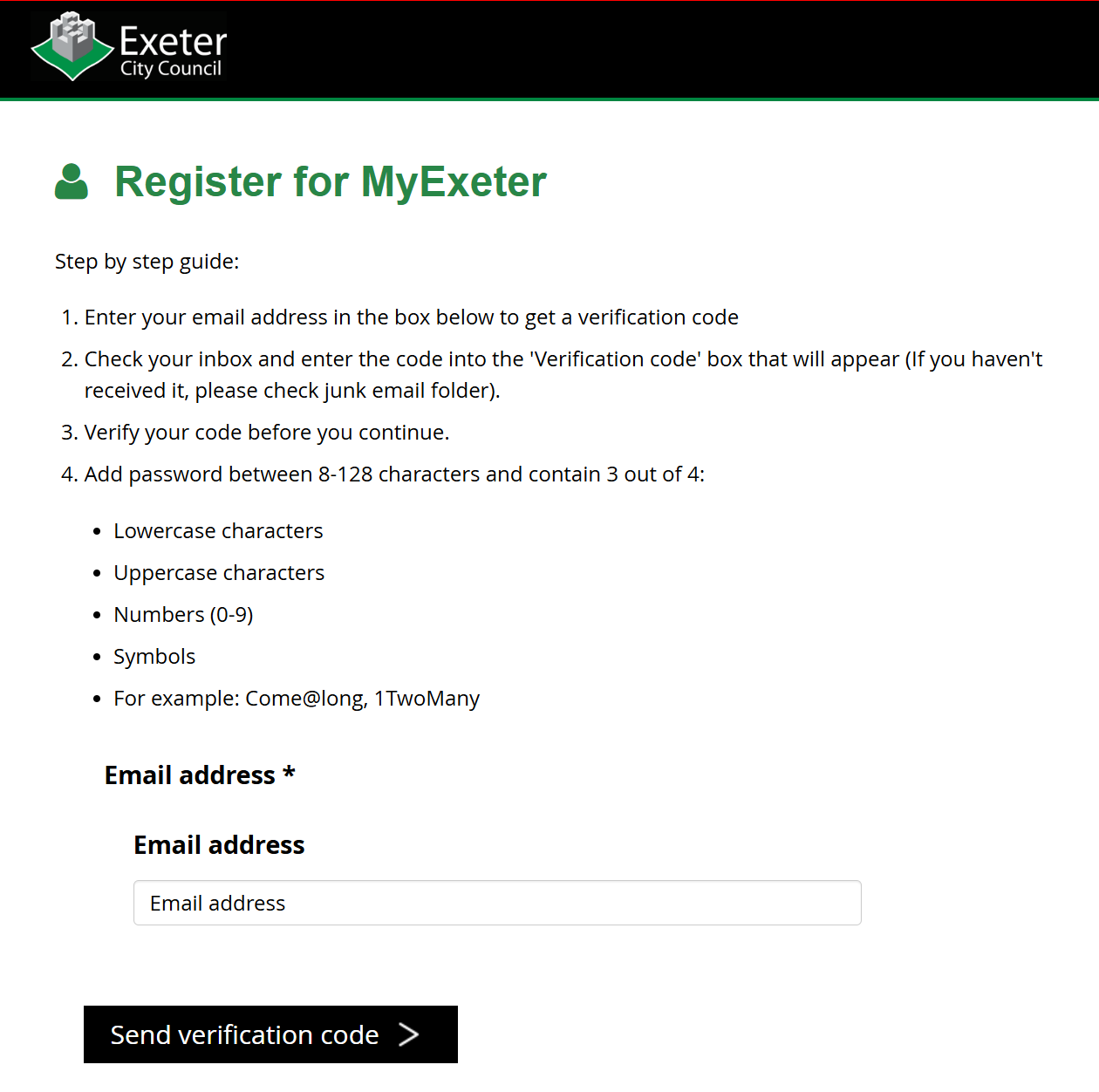
Step 1 - setting up your MyExeter account
After you've clicked on the Register button, you'll see the screen below. Here you need to enter your email address for your new account. Please make sure you have easy access to this email address as we will send you an email in the next step to verify your contact details.
Step 2 - confirming your email address
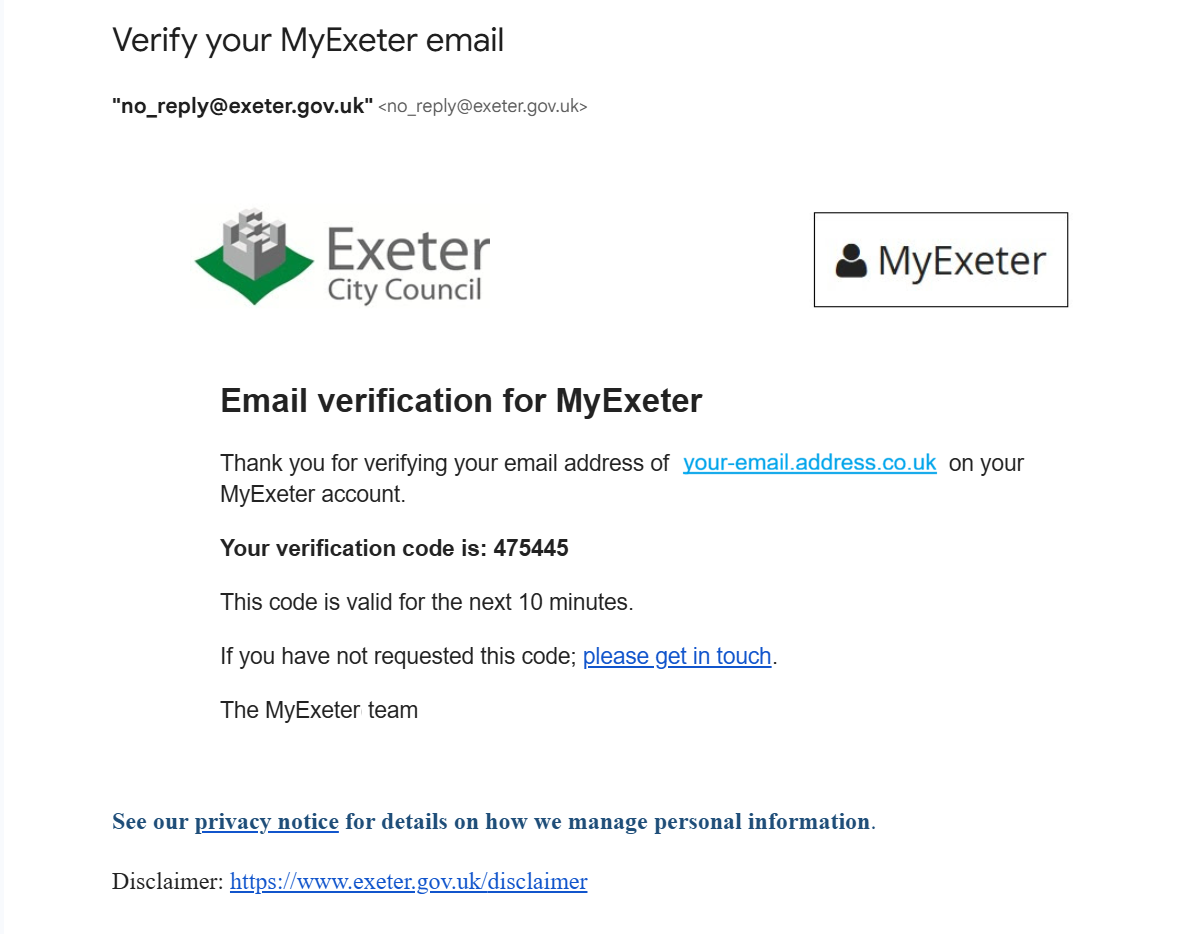
You now need to check your email inbox because we've sent you a mail to ask you to activate your account.
The email comes from the address "no-reply@exeter.gov.uk" and sometimes it may end up in your spam folder, so please check there if you can't see it.
The email will look like the one below, and to confirm your new MyExeter account all you need to do is remember, or make a note of the verification code.
Once you've made a note of your verification code, go back to the MyExeter page and enter it into the box provided.
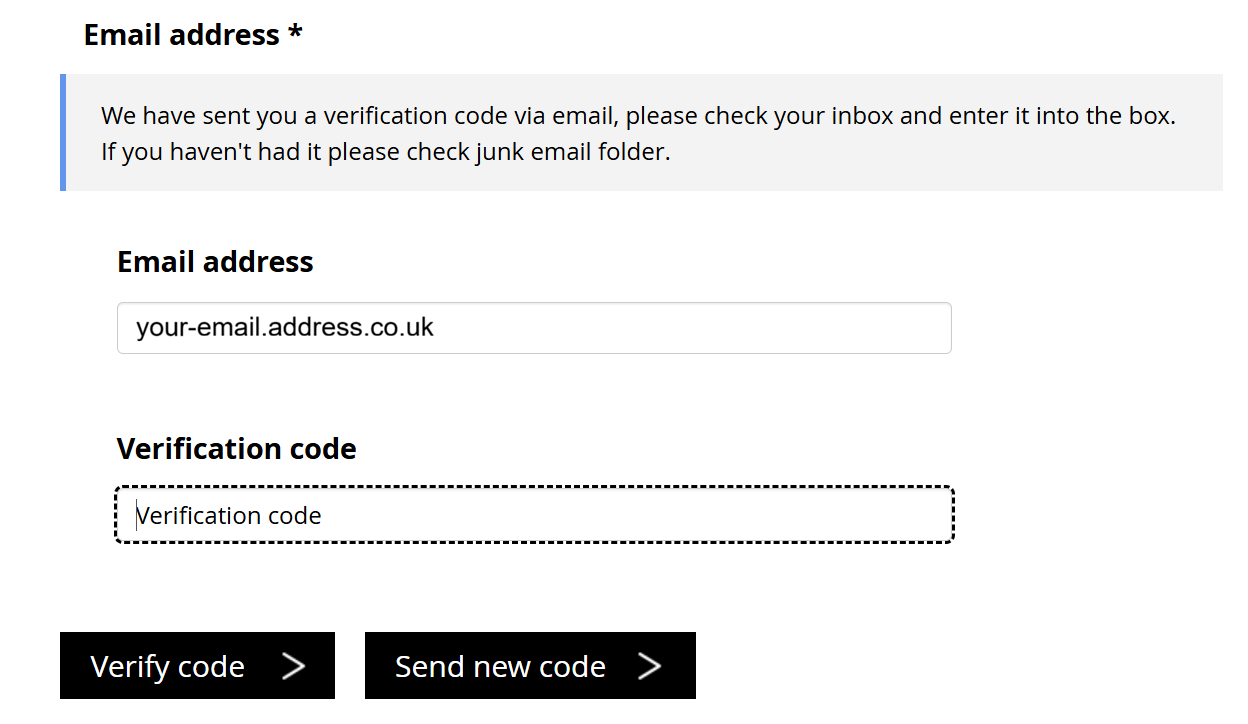
Once you've entered the code form your email, you can clisk on the Verify code button.
If you've lost, forgotten or didn't get the code, you can click on the Send new code button and we'll send a new code for you to use.
Step 4 - Completing your account details
When you click on the link in the email, you'll see a page that says your account has been activated. Now you'll need to sign in again with the email address and password you used in Step 1.
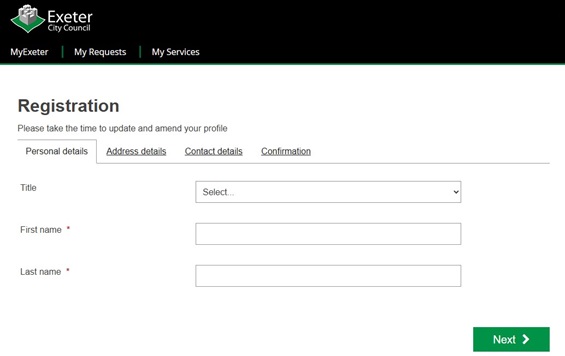
The final part of setting up your new account is to tell us a little bit more about you. So you'll need to let us know your name, address, phone number and how we can best contact you. You can see how this screen looks below.
Finally, you can click on the Submit button and your new MyExeter account is ready for you to use to track all your requests with us.
Can organisations or companies use MyExeter?
Yes, however here are a few helpful hints to get the best out of MyExeter.
- We recommend that when you register, you use your organisation or company email address (e.g. name@organisation.co.uk)
- Do not use your personal email address. If you do all of your personal and organisational interactions with us will show on the same account.
- If you have a member of staff that accesses MyExeter for your organisation leaving; then we suggest that you change the email address of your organisation’s MyExeter account before they leave.
- To change the email address, simply login to your MyExeter account, and use the “Change Email” option by clicking on the profile name in the top right of the screen.
- By changing the email address to another member of staff, you will be able to retain the history of your organisation’s interactions with us. It will also help us to answer any queries you may have about past interactions.
Having problems creating an account or logging in?
If you are having trouble creating a new My Exeter account, or can't log in to your existing account, then please contact us online and we’ll be in touch as soon as we can.